Requests for IT help are now recorded and managed in UIndy Works.
- Navigate to works.uindy.edu.
View your requests within UIndy Works
Click the View my Requests button.

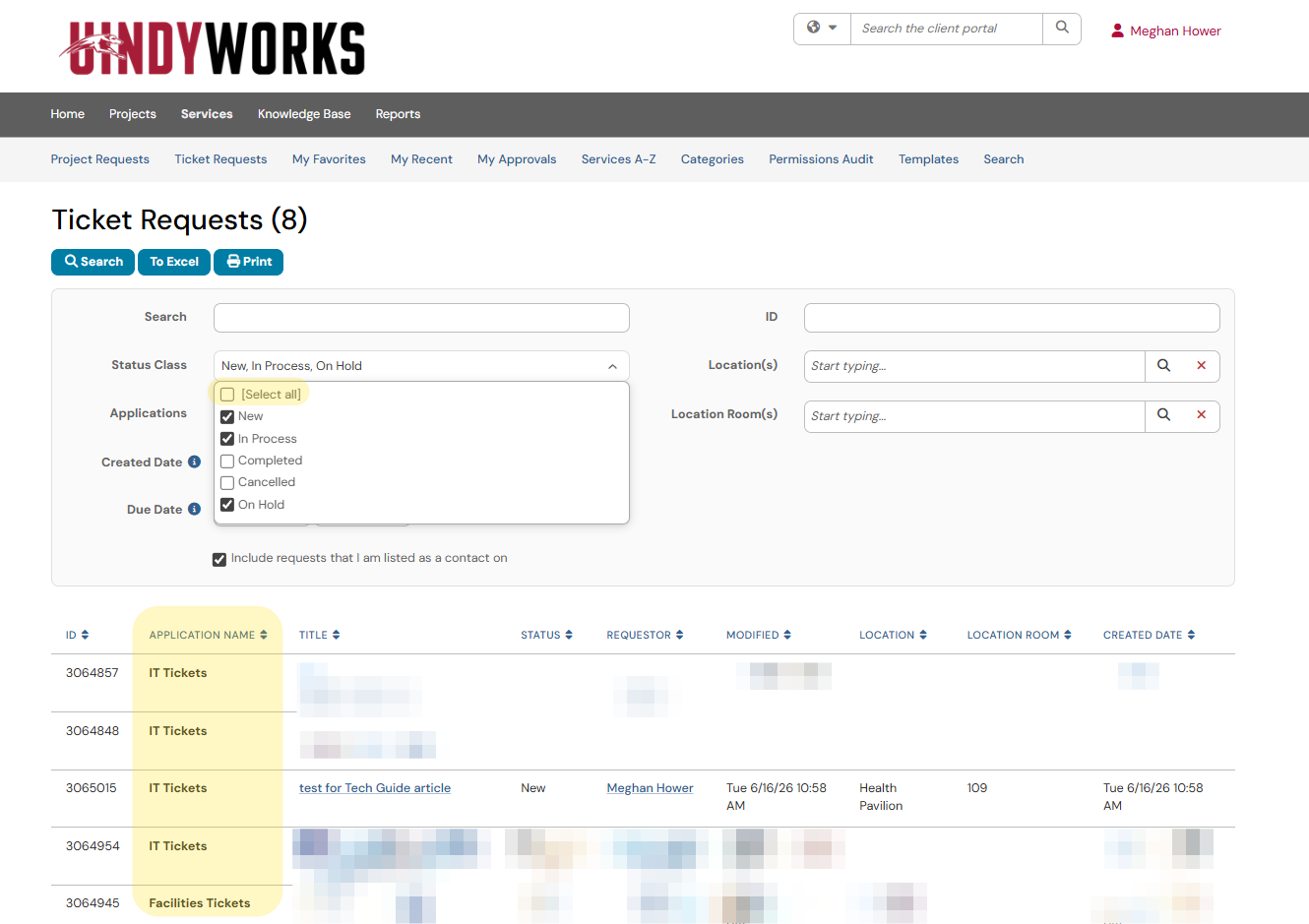
The Ticket Requests page inludes all tickets you have submitted. If applicable, tickets from other areas will also be listed here (see column Application Name). This page automatically looks at tickets with a status of New, In Process, and On Hold. Optionally, you can update the filter by checking the box next to [select all]. If you reach out to a specific department, the technican can only see the tickets within their application.
Respond/upload files to a ticket
- After you found your applicable ticket from steps above. Click on the title of the ticket to open it.
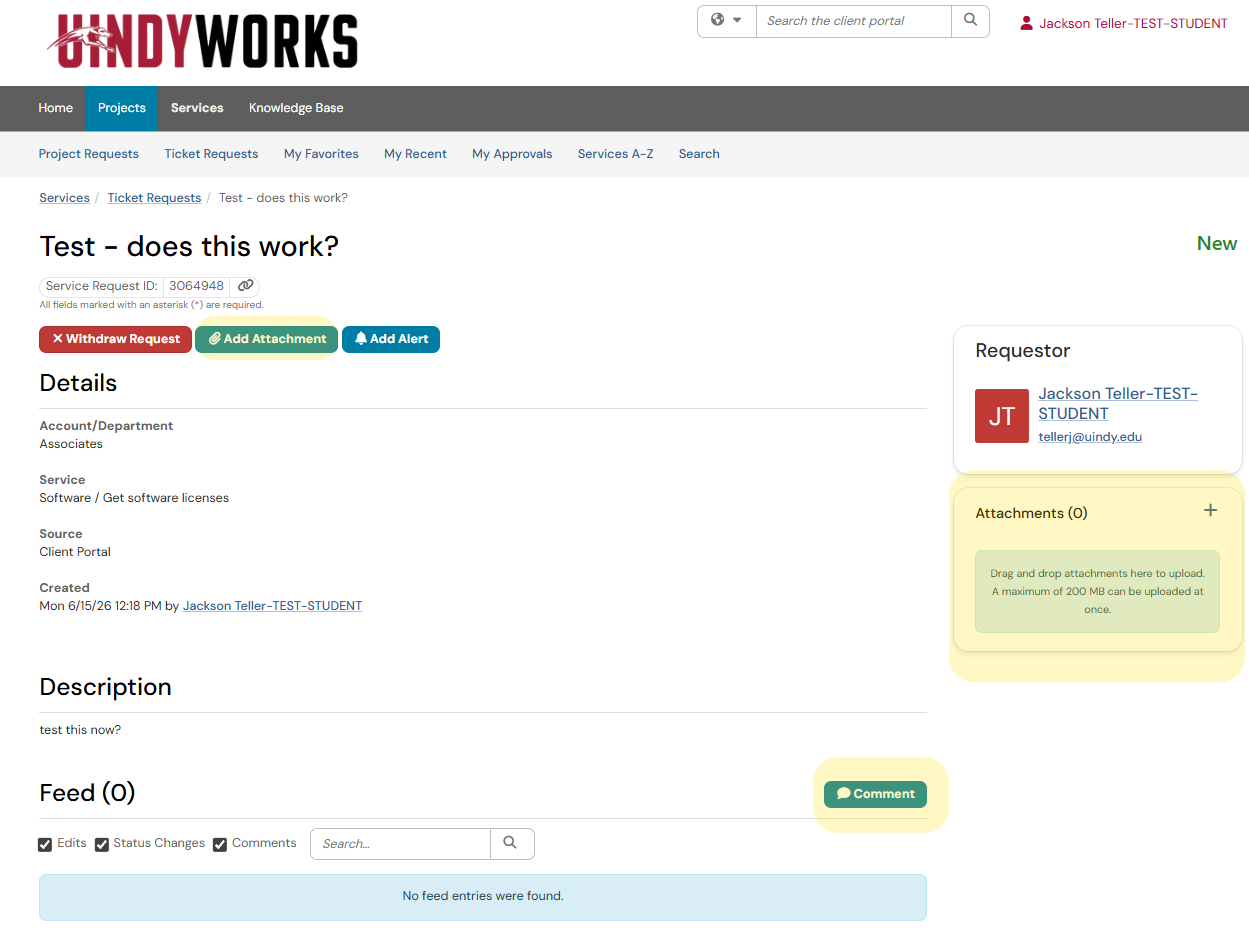
Click the Comment button to add updates. Click the Add Attachment button to add files or images to your ticket.
The updates (comments) you added will then appear in the Feed of the ticket and will automatically send notifications to the predetermined team. You can add multiple attachments at one time, you can also drag and drop attachments in box under your name (as the requestor).