Individuals (PI/PD) seeking external funding should utilize the grant search feature within Euna Grants. Follow the steps below to search for funding within UIndy’s Grant Management Software. If you identify a grant opportunity that is not in the system, you must reach out to the Office of Grants and Sponsored Programs ([email protected]) to have the opportunity added to the system.
See accessing Euna Grants for login directions.
Search for Grants in Euna
Once you are logged in, follow the directions below to search for funding opportunities.
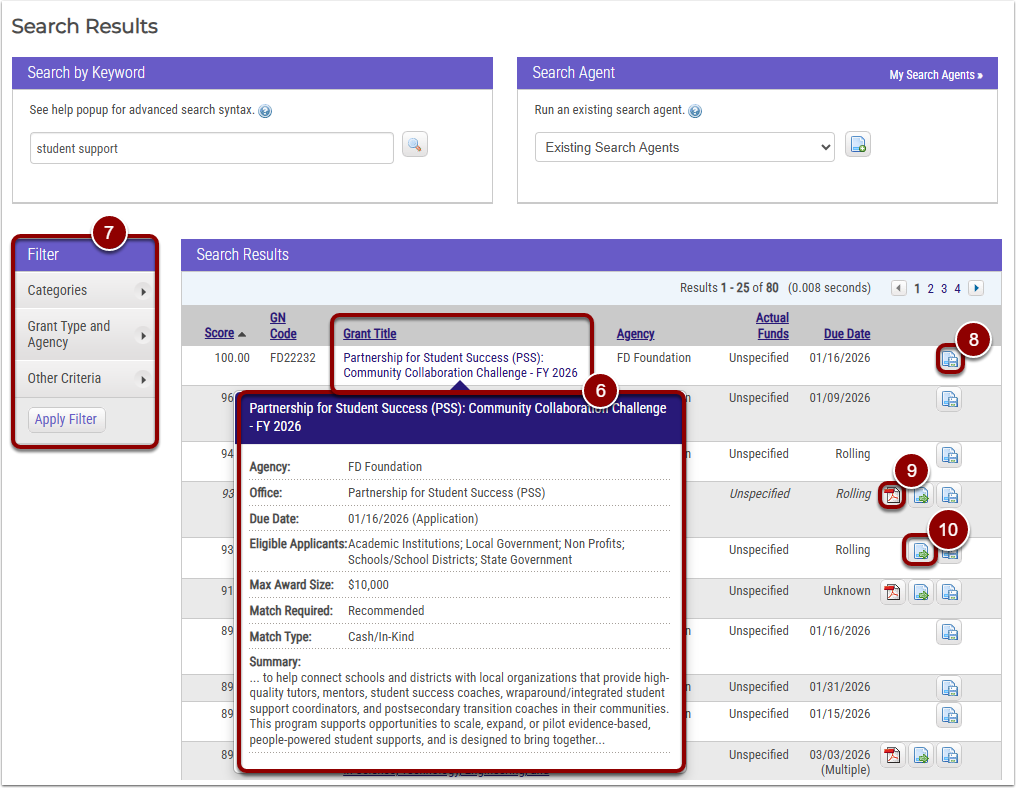
- Hover over the Research tab and select Search for Grants.
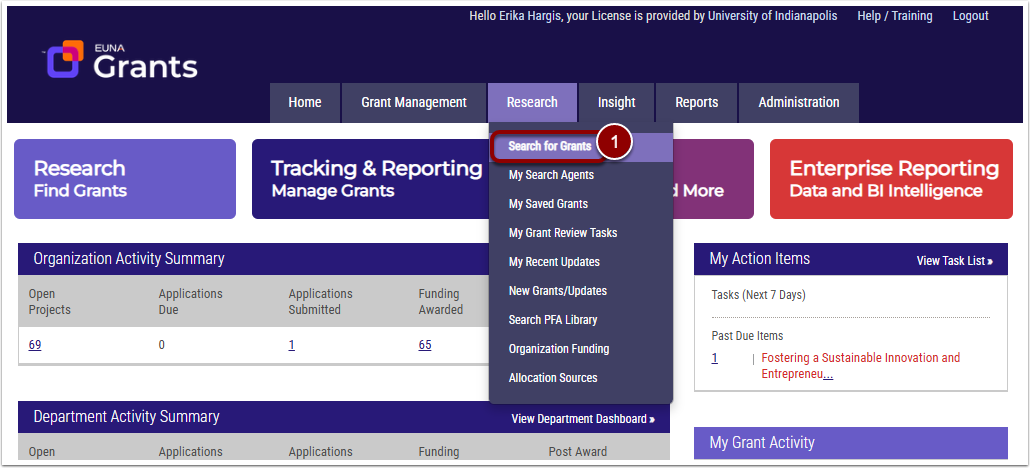
- Enter in any keywords pertaining to the project you are seeking funding for.
- Select Academic Institutions under Eligibility drop-down menu in the Additional Search Criteria section.
- If you want to only see grants with an upcoming deadline, select All Upcoming from the drop down menu in the Due Date field.
- Click Find Grants Now! button.
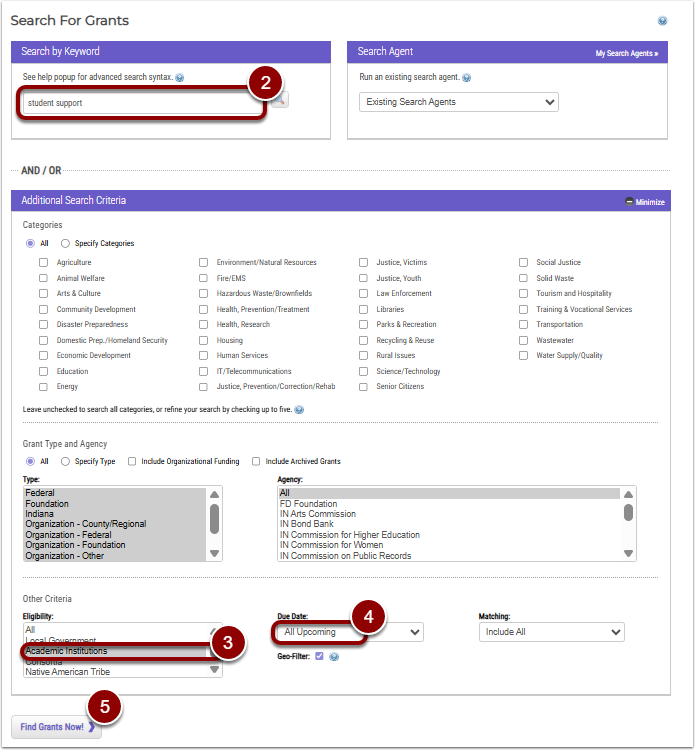
- Hover over any opportunity to see a brief overview of the opportunity.*
- Use the Filter to update search criteria.
- Click the double-page icon to save funding opportunity.
- Click the Adobe PDF icon for Previously Funded Application (PFA)
- Click the page with green arrow icon for Notice of Funding Availability (NOFA)