Legacy My UIndy is the previous version of UIndy's portal, My UIndy. During a transition period to the new My UIndy, starting in July 2026, both the new and old My UIndy sites will be available.
If you need to edit content in Legacy My UIndy but haven't ever done so, please let us know by submitting a UIndy Works request. After access has been granted, you will be able to edit Legacy My UIndy content with the web editor tool Divi. For instructions on how to navigate through Divi, please see below.
First, determine if the content you want to edit is stored in Google Drive or Legacy My UIndy.
Some My UIndy content is stored in Google Drive and other content is stored directly in Legacy My UIndy pages. If you do not know whether your content is directly in Legacy My UIndy or in Drive, use the following information to determine that.
Legacy My UIndy Content
Legacy My UIndy pages you are able to edit through the Divi content management system will have a web address starting with legacy-my.uindy.edu (e.g. legacy-my.uindy.edu/registrar).
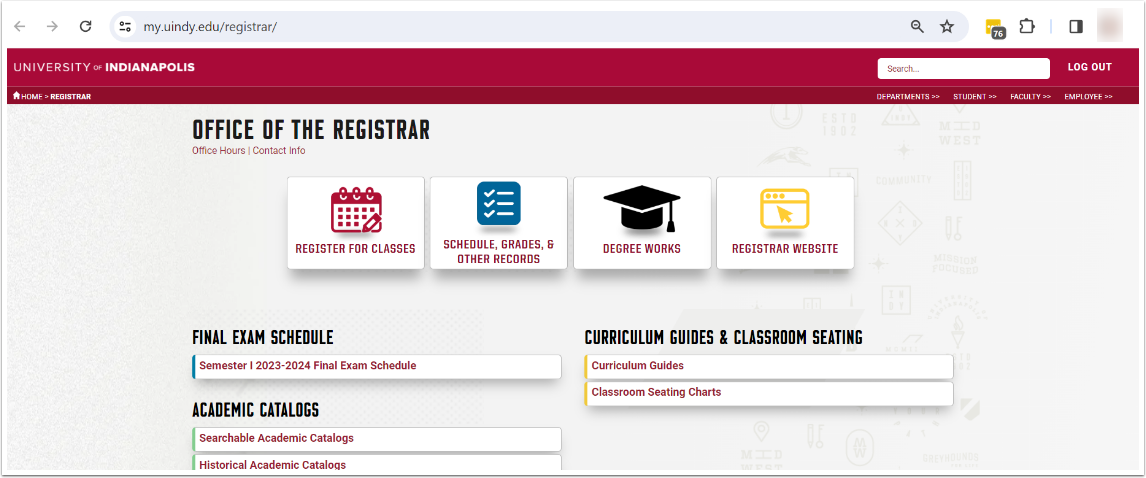
Navigate to instructions for Editing Page with the Divi Tool.
Google Drive Content
Google Drive pages will have a web address starting with drive.google.com.
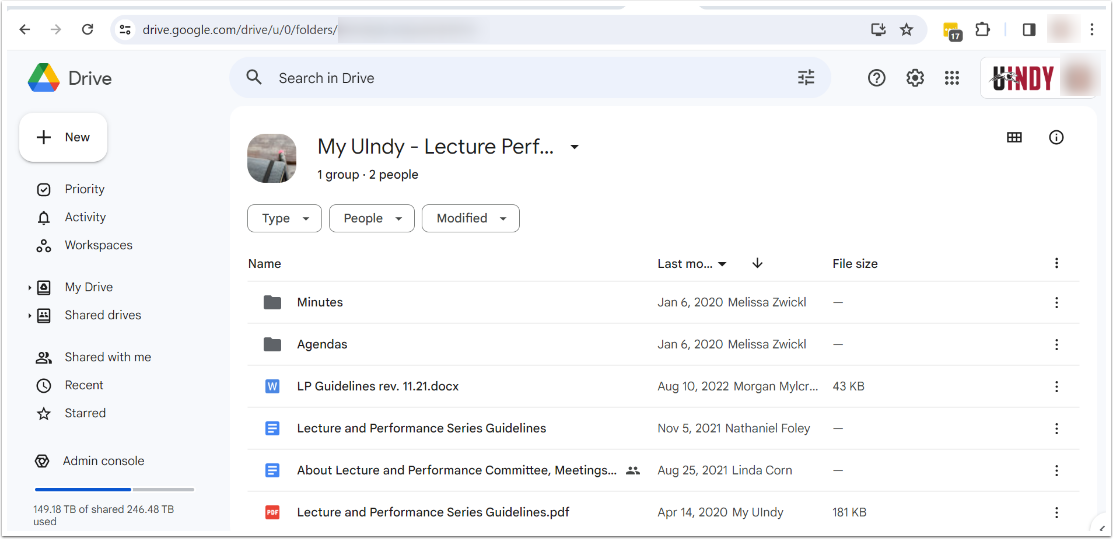
Navigate to instructions for Editing My UIndy Content in Google Drive.
Second, select the editing tool for your content type
Select the correct editing tool for the type of content you have: Legacy My UIndy page content or Google Drive content.
Edit Legacy My UIndy Page Content with the Divi Content Management Tool
Enable page editing
- Navigate to the Legacy My UIndy content editor URL you were given by UIndyIT. If prompted, log in with your UIndy username and password.
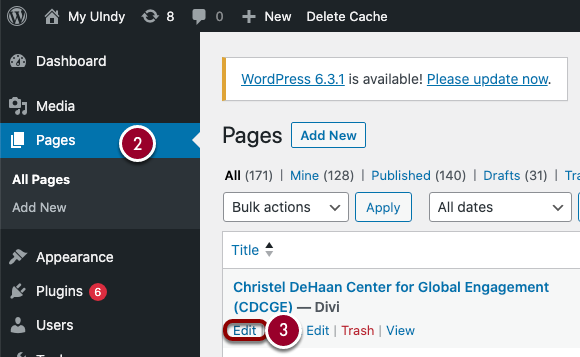
- Click Pages along the left side of the page.
- Click the Edit button under the page title you would like to edit.
- Click the Build On The Front End button directly above the purple "The Divi Builder" bar.

You will see the page you selected as it would appear in Legacy My UIndy with a few additional buttons and tools (as shown below) floating over certain areas of the page.


Select the area of the page you want to edit
- Hover over the content you would like to change. When options appear, click the gear icon that says Module Settings.
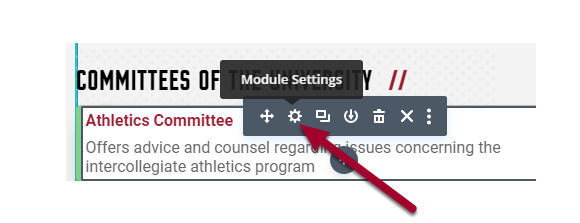
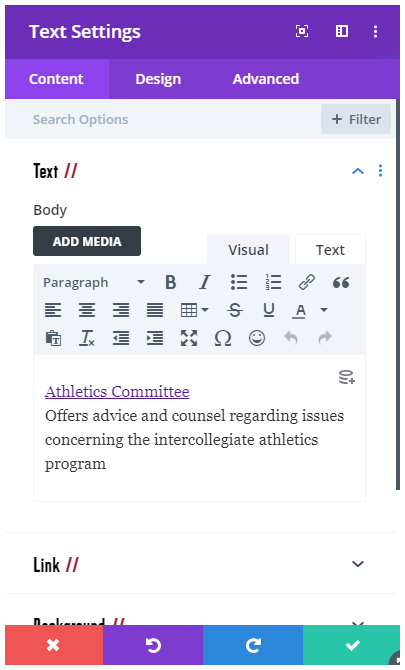
- A "Text Settings" editing window will appear on the page.
Edit text or update a link
- Click within the text to make updates as you would in a word processing tool.
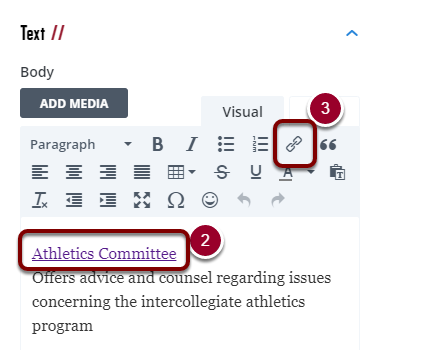
- To edit a link, click the text that is already linked. To add a link, highlight the text that you want to be linked.
- Click the chain-link icon button.
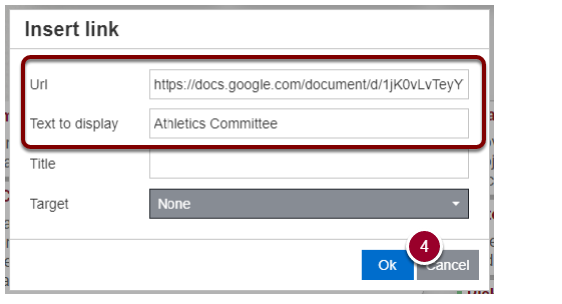
- An Insert link box will appear. From here you can edit both the link and text for the link. Click the Ok button when you are done making changes to the link.
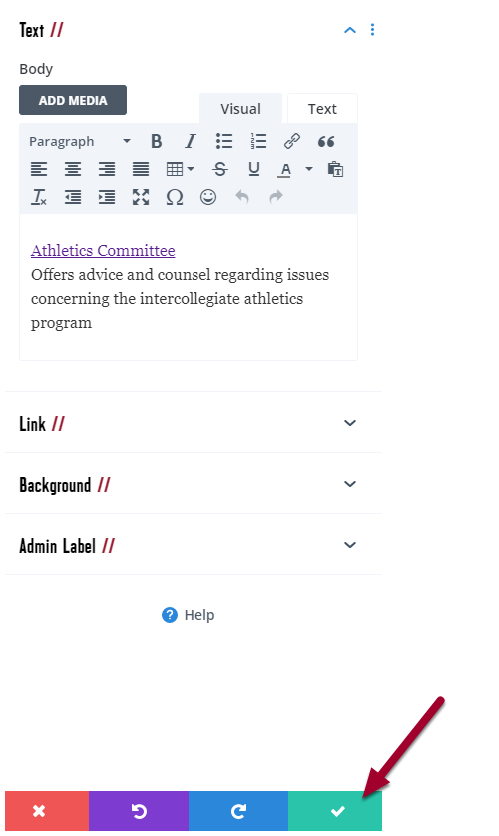
- Make sure to click the green checkmark button to complete your updates.
Link and share a file from Google Drive
If you are linking from an item that's in a My UIndy Shared Drive, please follow these steps:
Sharing a link from a folder or doc:
- Copy the document URL.
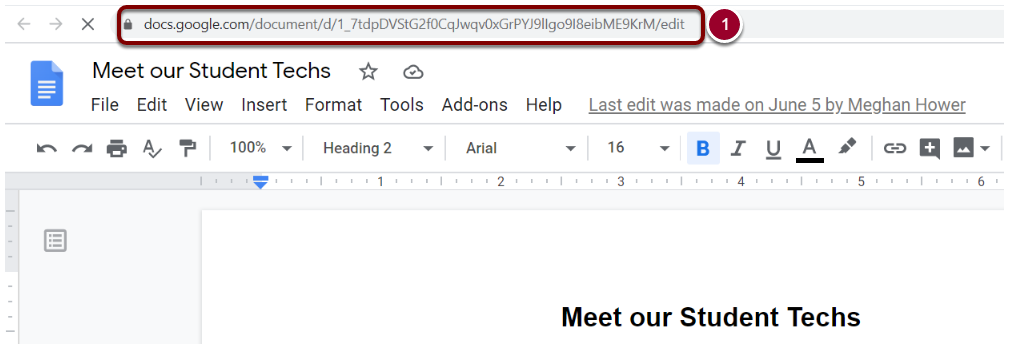
Sharing a link from a PDF:
- Right click on the file.
- Select Get shareable link.
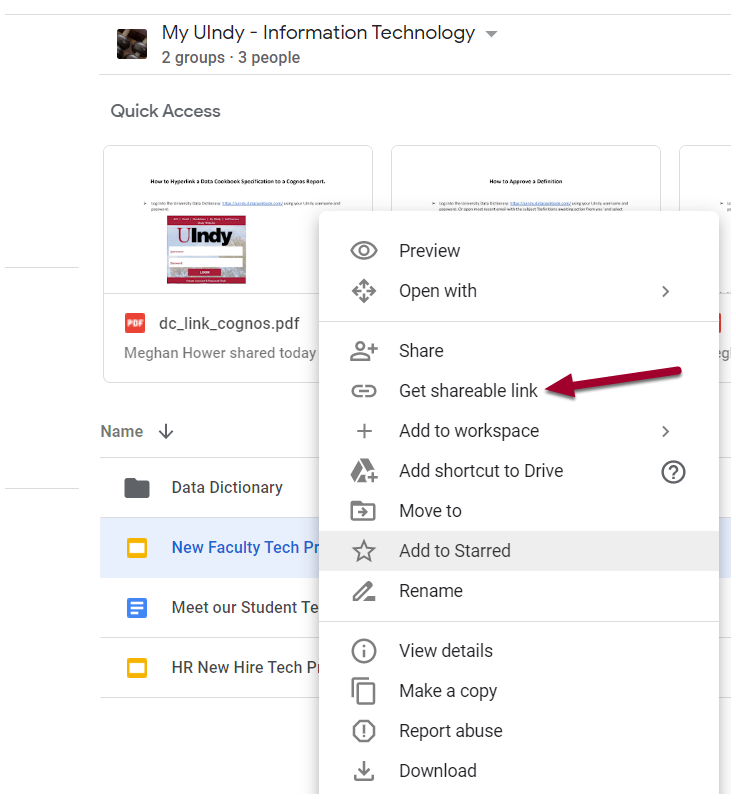
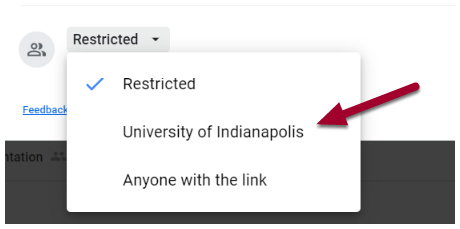
- A 'share with people and groups' window will appear. By default, access to the file will be restricted. We recommend selecting University of Indianapolis. This will allow anyone with a UIndy account to view your file.
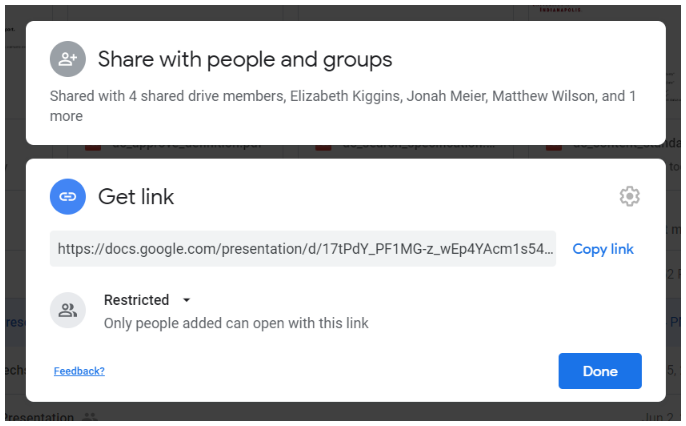
- Click on Copy link.
- Click the Done button.
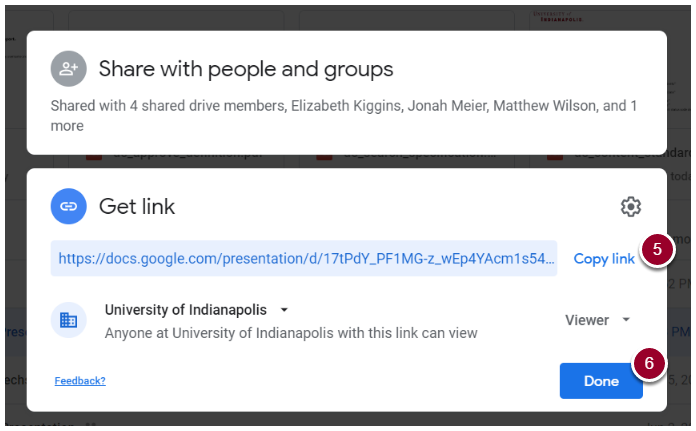
- You now have the link to paste back into Divi Builder. See step 3 for details.
Edit accordion text
Accordions offer a great way of segmenting a lot of information on a single page, and having some content folded (hidden until clicked on).
- To edit accordion text, make sure you've clicked the gray gear icon that says Module Settings in the accordion area of the web page.
- In the resulting Accordion Settings window, click the gray gear icon to the left of the accordion section you want to edit.
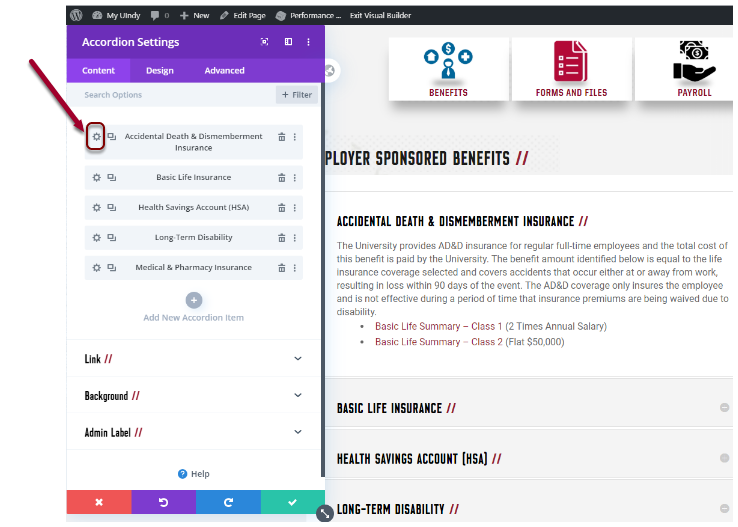
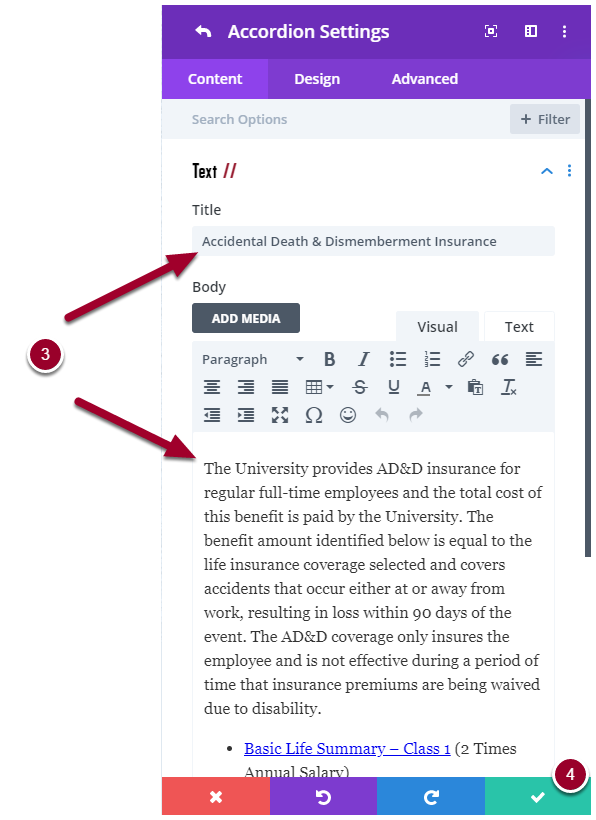
- Edit the text within the accordion like you would in a regular text settings window. The title of the accordion section shown is in the Title area. The text that is hidden and/or shown is in the Body.
- Make sure to click the green checkmark button to complete your updates.
Save your edits to the page
The next two steps are important because they save all the changes you've made to your page.
- Click the round purple button with the three dots on the bottom of the page you are editing.
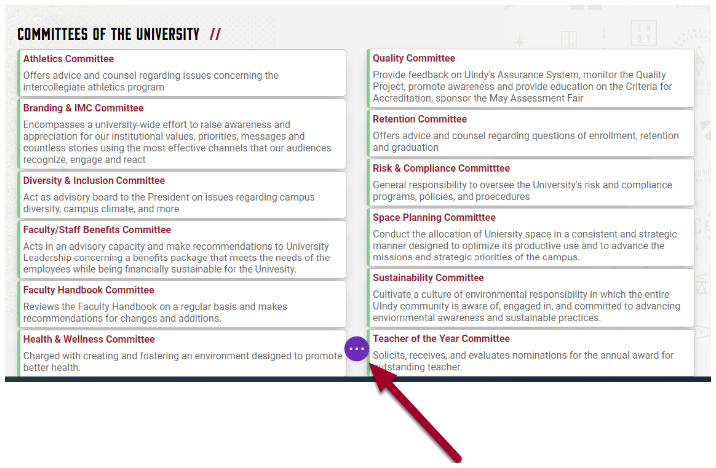
- A horizontal menu will reveal more options. Click the green Save button.

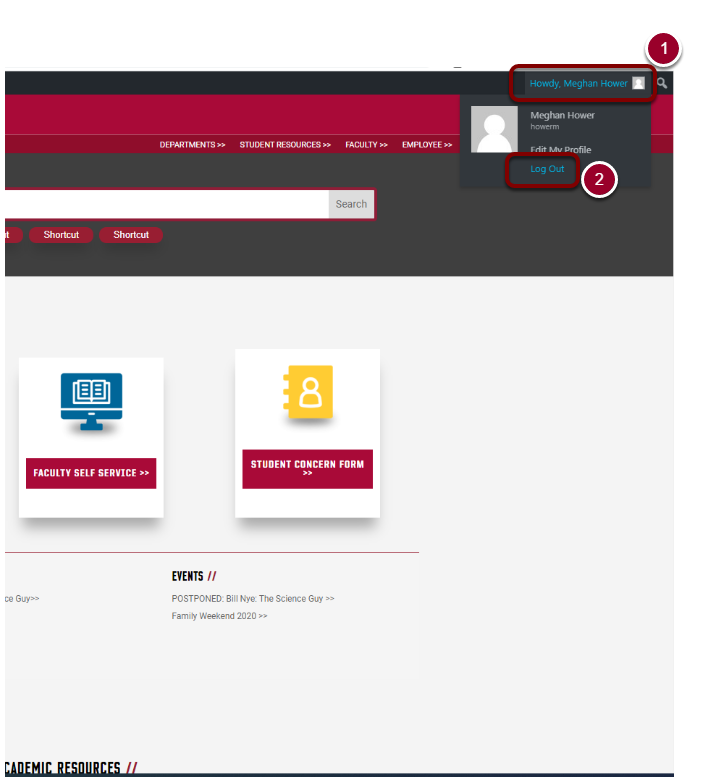
Log out of the Legacy My UIndy content editor
- Click on the Howdy, (your name) link located at the top right corner of the page.
- Select Log Out.
Edit My UIndy Content Stored in Google Drive
There are two ways to update My UIndy content stored in Google Drive:
- Google-native documents, like Google Sheets and Google Docs, can be edited directly within Google Drive and those updates will be shown immediately within My UIndy.
- PDFs, Word Docs (.docx), and other non-Google-native formats will need to be updated via Manage Versions to maintain their link to My UIndy. See Update with Manage Versions for instructions.