What is UIndy Works?
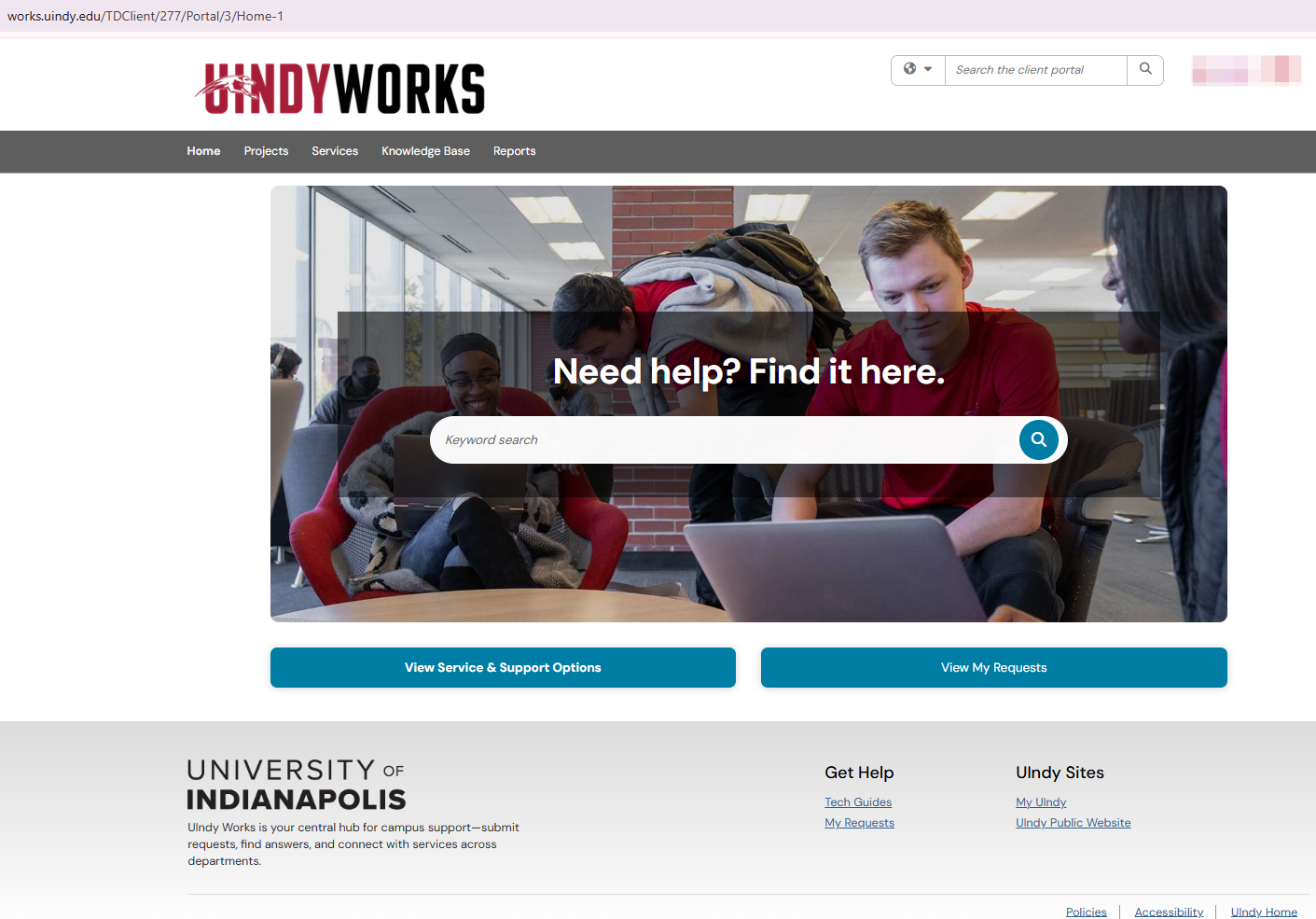
works.uindy.edu is a single portal for all student, faculty, and staff requests, automatically routing them to the correct team. Think of UIndy Works as the site to go to when you have the question, “How do I....”. It’s a site to find informational how-tos so that you can get what you need or have the option to submit a request for additional help.
While our goal is to build and expand this portal across campus, currently we are only moving people and departments that handle requests through our current ticketing system.This unified approach is designed to:
- Eliminate the need to guess who to contact
- Break down departmental silos
- Ensure consistent, professional service by ensuring requests don’t get lost in email
Contributing Departments
- Information Technology
- Facilities
- General Counsel
- Center for Service-Learning & Community Engagement
- Krannert Memorial Library
- Faculty Academy
Later this summer…
- Registrar’s Office
- Institutional Research
Navigate through UIndy Works
Submit a request
- Navigate to works.uindy.edu.
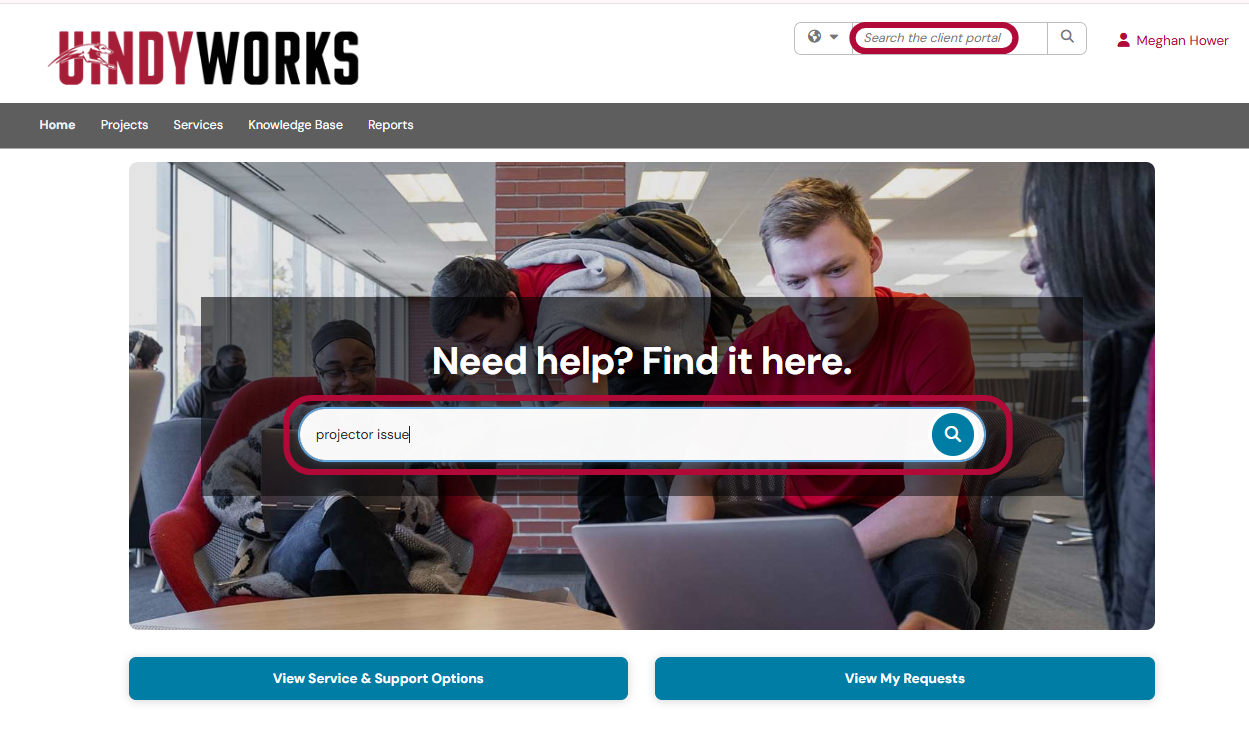
Enter a keyword (ie - projector issue) in the search bar to find what you're looking for.
Select the desired service.
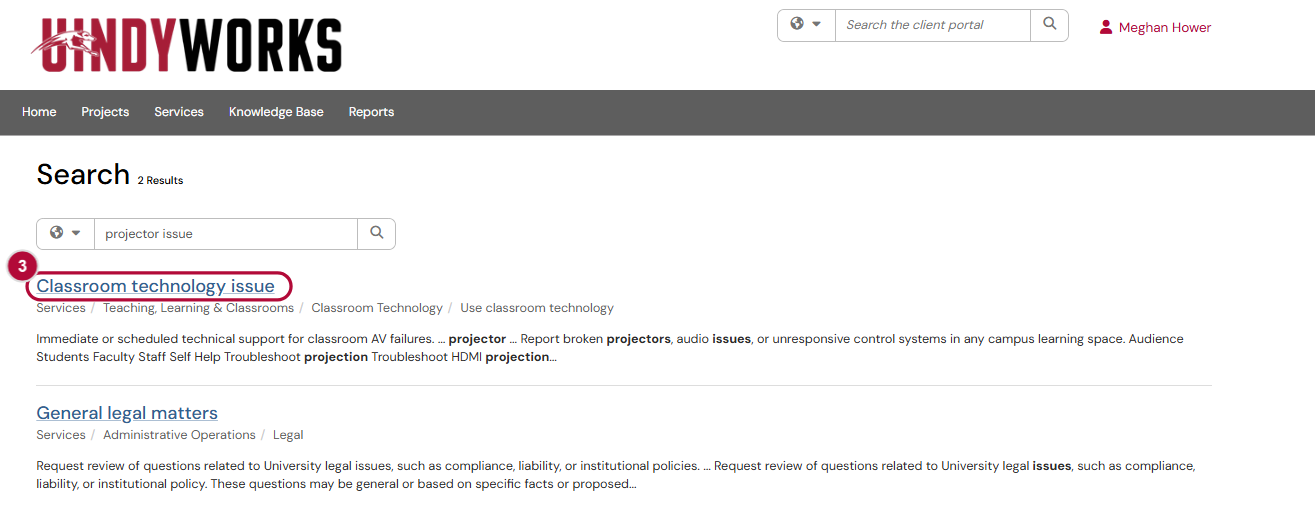
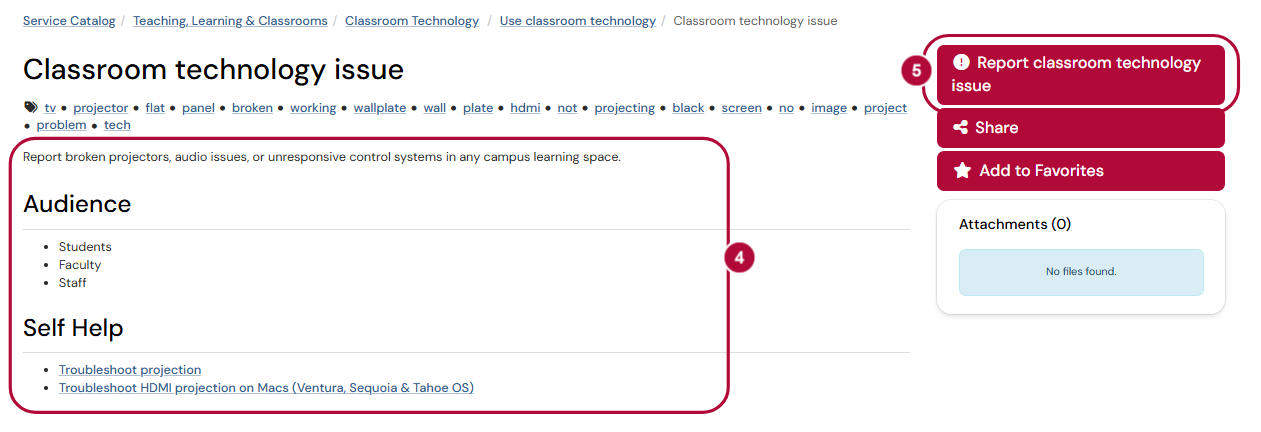
- Review the service description, Audience and Self Help (if applicable) associated with the service.
If you still need additional help, select the red action button to the right.
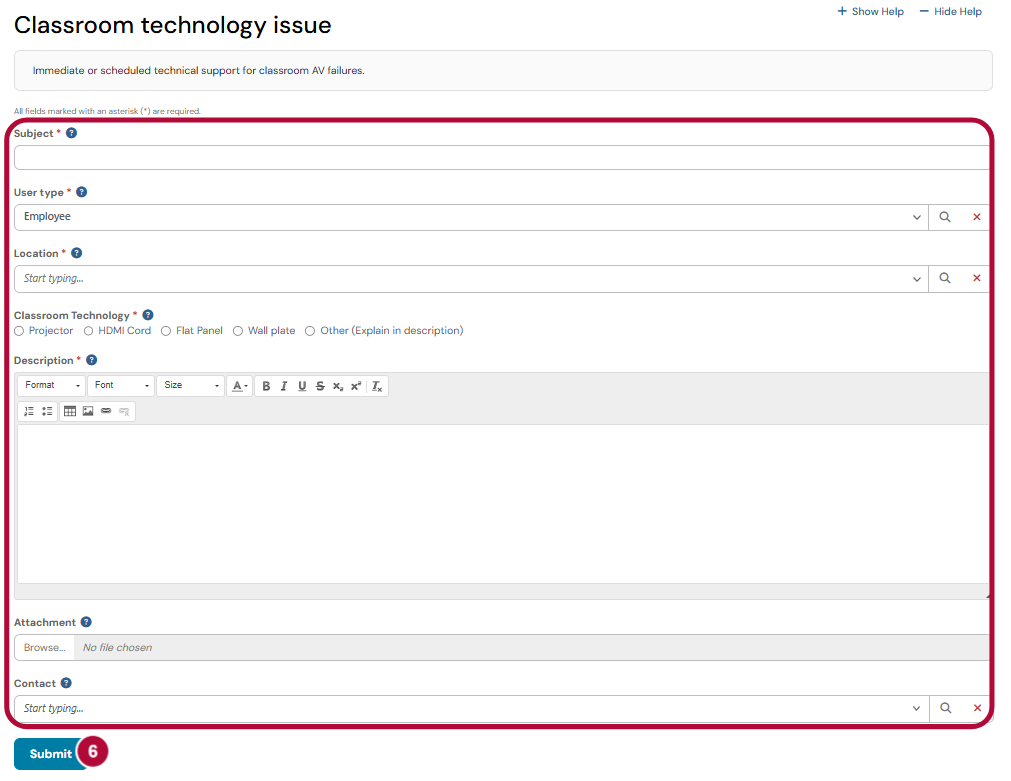
A form will appear, fill in the fields as necessary. Click the Submit button.
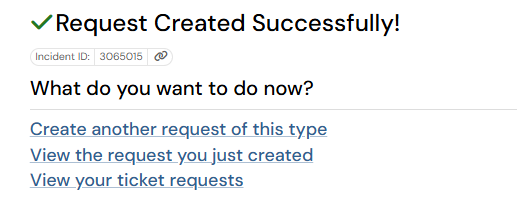
Your ticket is now created. You will receive a success message as pictured below. You can create another request of this type, view the request you just created, or view your ticket requests.
View Your Requests
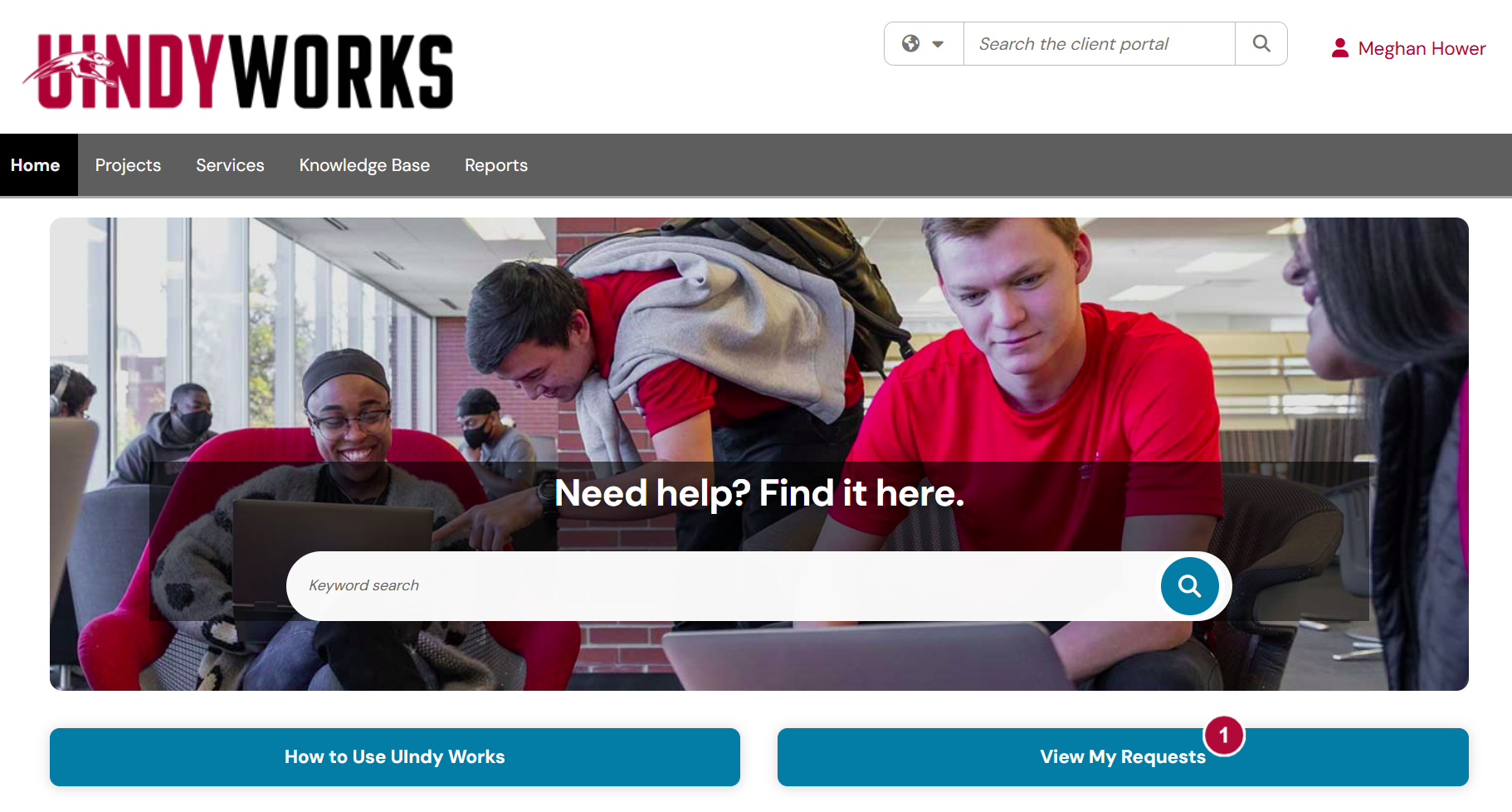
On works.uindy.edu homepage, click the View my Requests button.
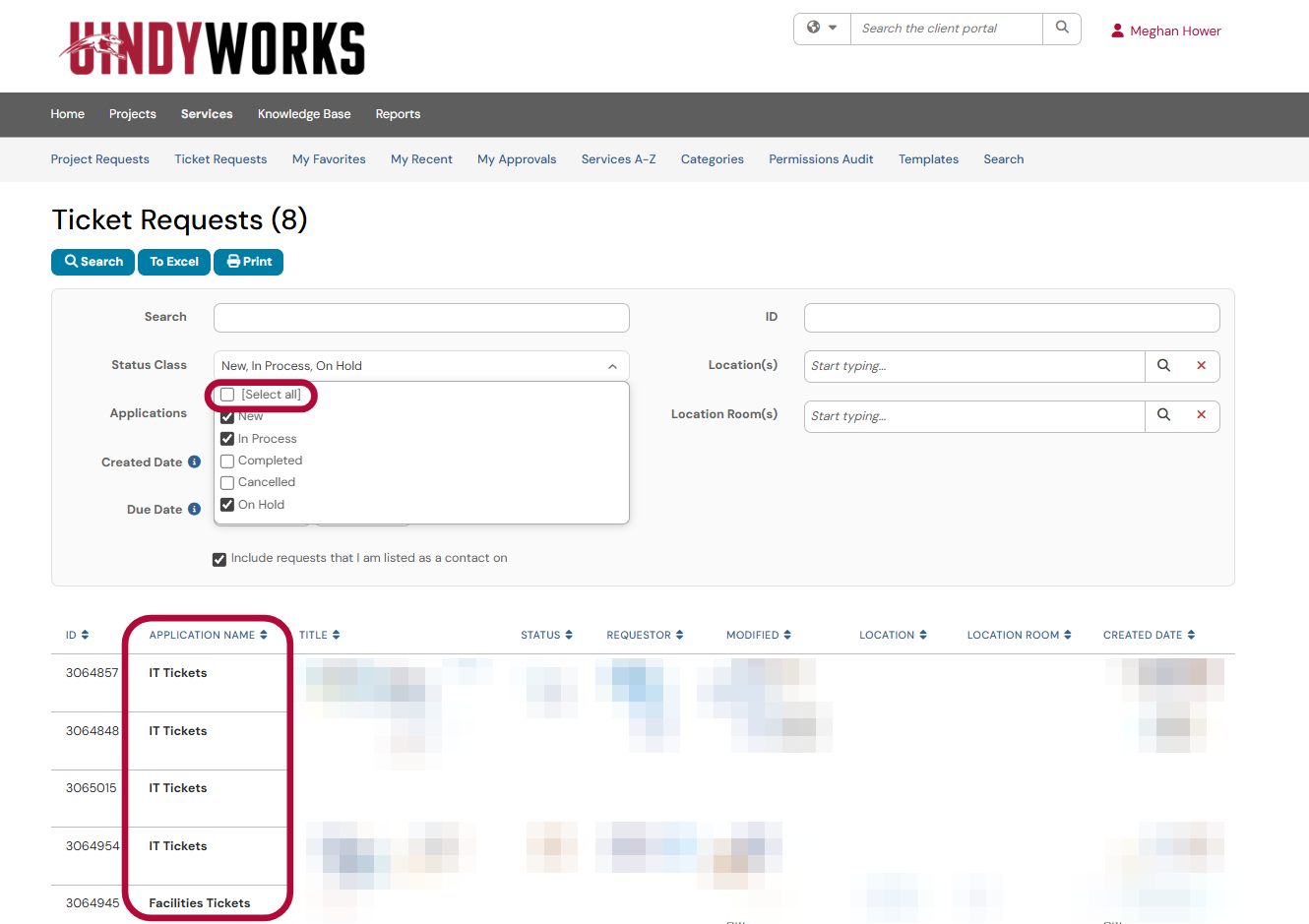
This new page automatically looks at tickets with a status of New, In Process, and On Hold. Optionally, you can update the filter by checking the box next to [select all]. Note that list includes tickets you've submitted, so they can cover various departments. And if you reach out to a specific department, the technican can only see the tickets within their application.